Jupyter Notebooks
We will be using Jupyter Notebooks in this class as a way to explore machine learning concepts, complete in-class activities, and work on projects.
Getting started
If you are familiar with Jupyter notebooks, you can use whatever environment you want to run them. If you are not familiar with them, there are a few ways to get started.
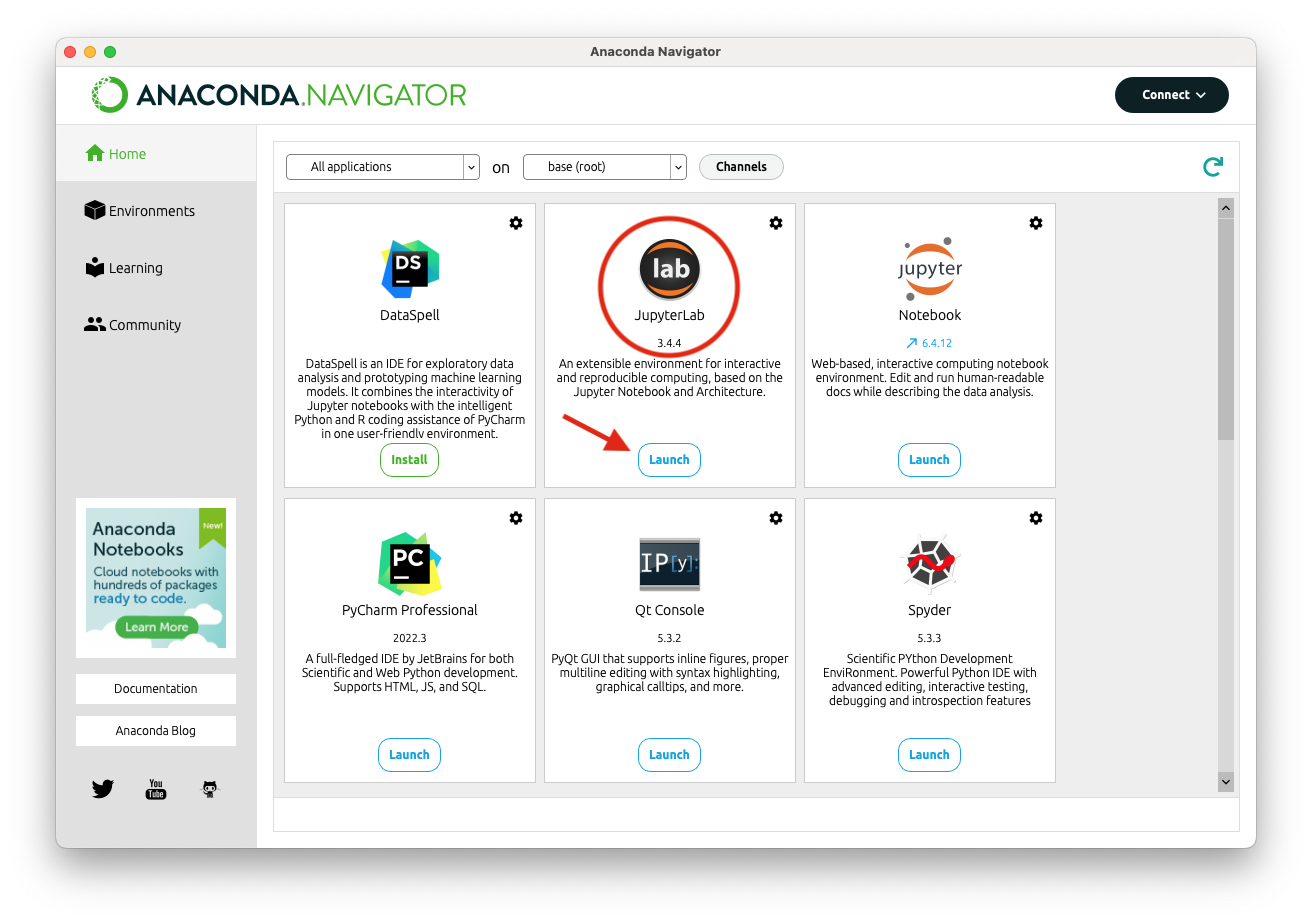
Run JupyterLab through Anaconda (recommended way)
These steps will install Anaconda (a Python distribution) on your local computer.
Run JupyterLab through the command line
If you feel comfortable at the command line and have a working Python installation, you can install Jupyterlab using one of these methods:
- Via
pip:pip install jupyterlab
- Via
conda:conda install -c conda-forge jupyterlab
Run JupyterLab with the command jupyter-lab.
Run notebooks in the cloud
There are a number of services that will run notebooks in the cloud. For these, you will need to upload the notebooks from class into the cloud interface.
- Lightning.ai
- Anaconda in the cloud - for this one, you can get cloud education credits for free
- Google colab - Can enter the GitHub URL from above to load notebooks. Can also get 1-year pro subscription for free for education.
Emergency
Using this link will let you view the notebooks, but it won’t save any of your work:
This one will load more quickly, but you will have to manually upload the notebooks:
Getting the notebooks for class
I will distribute notebooks for class via Git. If you haven’t used or Git or Github before, that’s ok!
If you are using the lightning.ai notebooks in the cloud, launch the VSCode IDE, and go to the Source Control toolbar along the left side of the screen. Once there, look for the three horizontal dots, click then, and choose “Pull” from the menu that appears. This will sync your environment with mine.
If you are running the environment on your own laptop, here’s the easy way to get set up:
- Download Github Desktop and install it: https://desktop.github.com/
- Run the program and choose File -> Clone Repository.
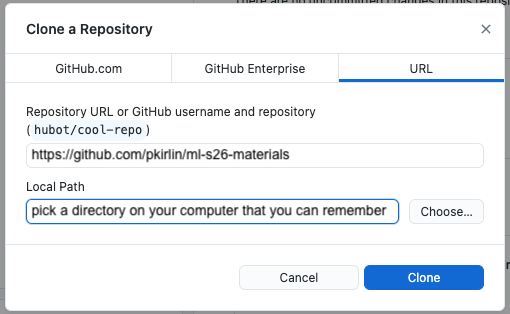
- Choose “URL,” then enter
https://github.com/pkirlin/ml-s26-materialsfor the repository URL. - Under “Local Path,” click “Choose…” and find a place on your computer you want to store your notebooks for this class. I recommend creating a new folder for this.
- Then Click “Clone.”
- Choose “URL,” then enter
- This will download a number of notebooks into the folder you chose.
Updating the repository
- There will frequently be new notebooks for you to download. The easiest way to update them is:
- Open Github Desktop and choose “Fetch origin” from the toolbar area at the top:
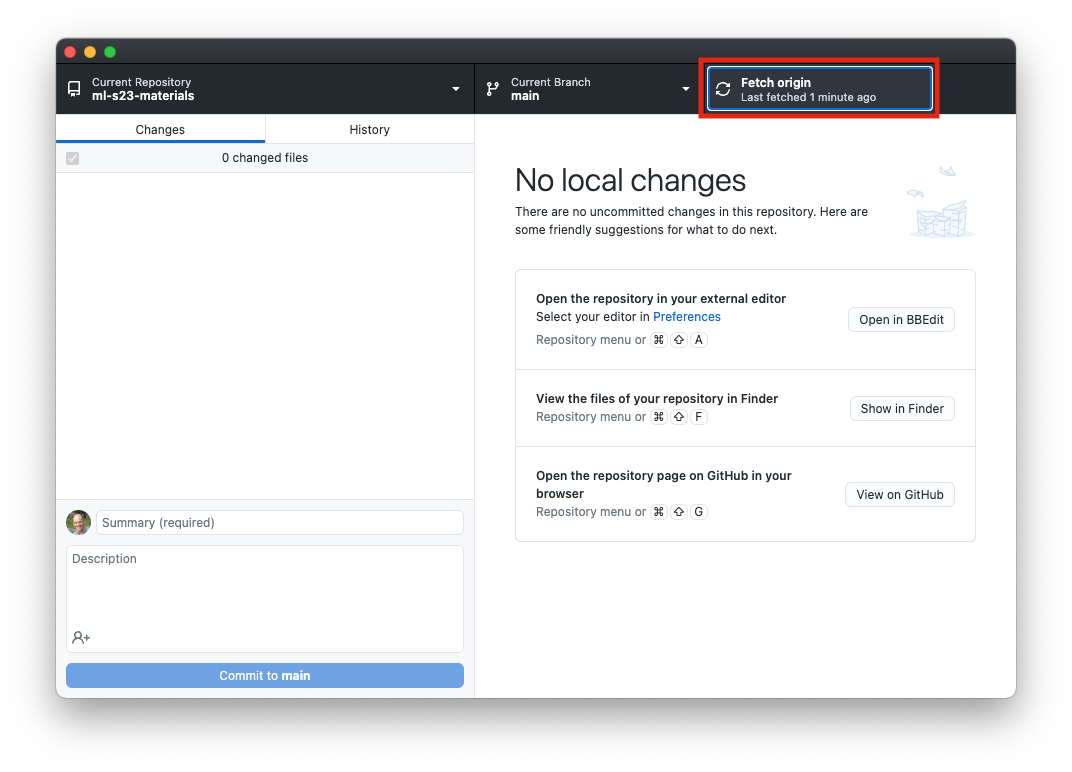
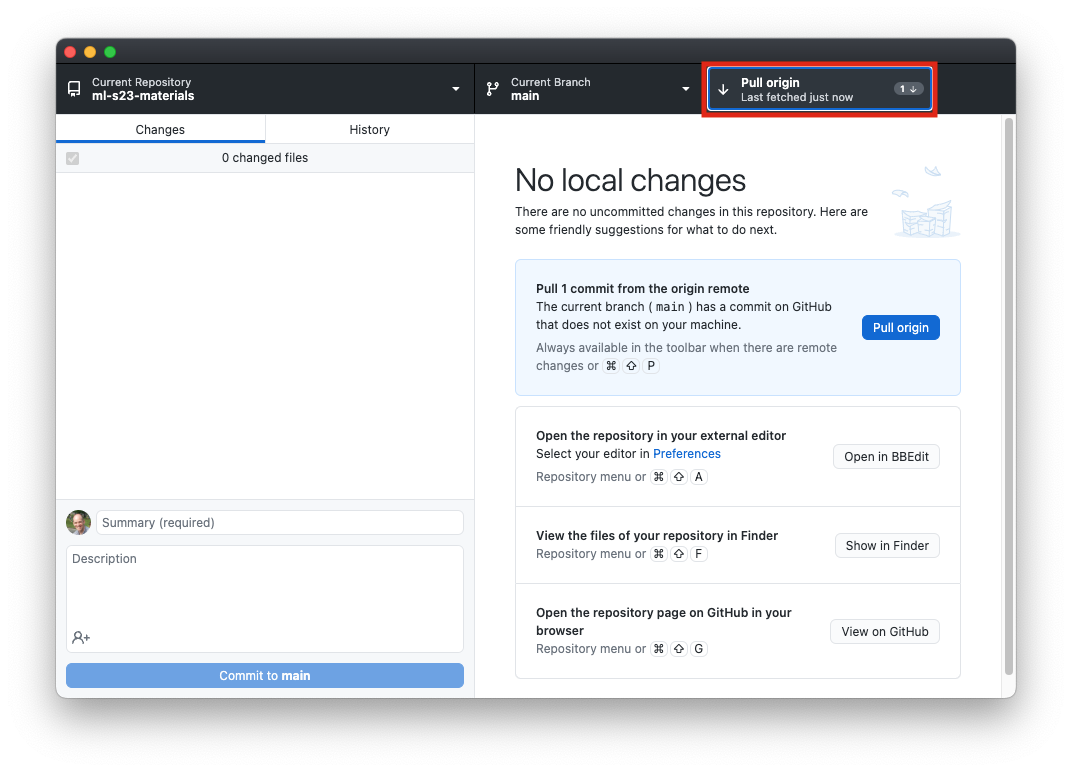
- Once you do that, if there are updates you haven’t downloaded yet, the button will change to “Pull origin,” and you can click it again to download the new notebooks.